

FAR AIM FOR FLIGHT INSTRUCTORS
Give your student a place to start.
Put the readings in order, add the question you want to discuss, and send one link. Your student can open the source beside your note.
View FAR AIM on the App StoreOne purchase. No subscription.
FAR AIM 2.0 · Reviewed November 19, 2026
Start with the lesson you want to teach
In FAR AIM, bookmark the pages you need. Open Saved → Reading Lists, create a list, and add the readings in the order you want the student to work through them. Give the list a title and a short instruction.
This example, Class B Arrival Briefing, asks the student to prepare an arrival from the east. Its readings are 14 CFR 91.131, Operations in Class B airspace, followed by 14 CFR 91.155, Basic VFR weather minimums.
Read § 91.131 in the eCFR and read § 91.155. The lesson should include the full source and the conditions relevant to the aircraft, pilot and flight.
Choose the note your student should see
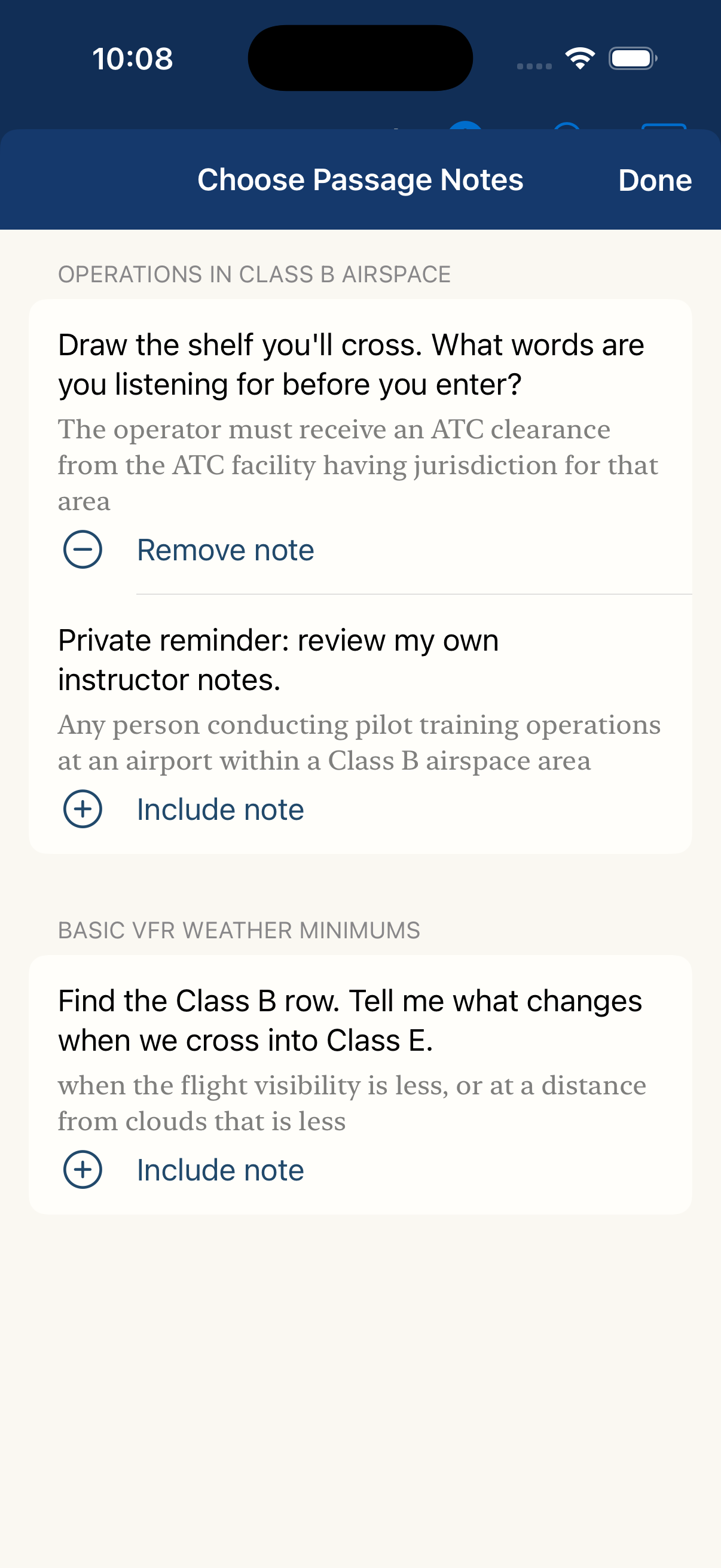
In the list editor, open Choose notes. For this example, the instructor includes: “Draw the shelf you’ll cross. What words are you listening for before you enter?” It is attached to the clearance requirement in § 91.131.
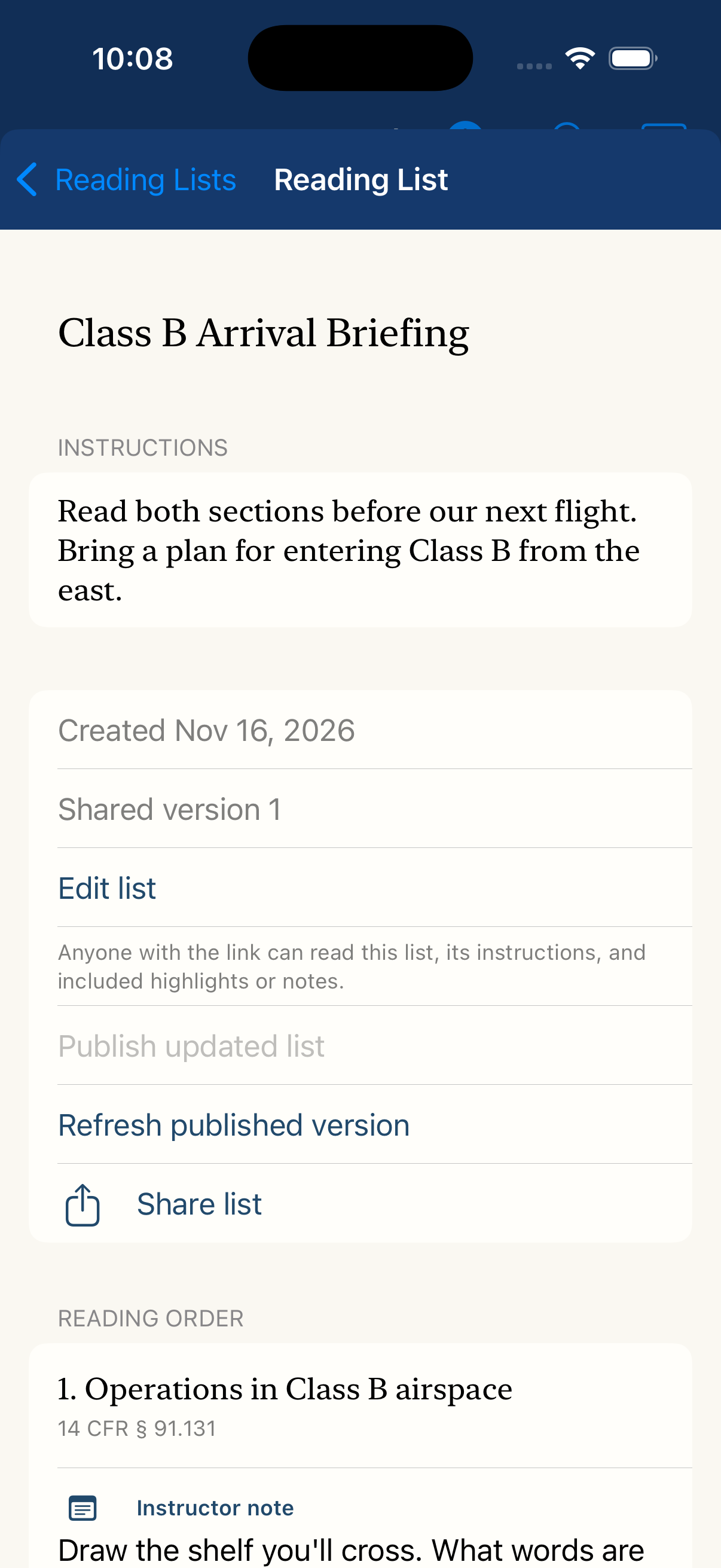
The included note shows Remove note. The private reminder and the weather-minimums note still show Include note, so those notes are not included in this example. Save the list, choose Prepare sharing link, then Share list.
Anyone with a published link can read its instructions and the highlights or passage-note copies you include. Review those choices before publishing.
Let the student preview, then save a copy
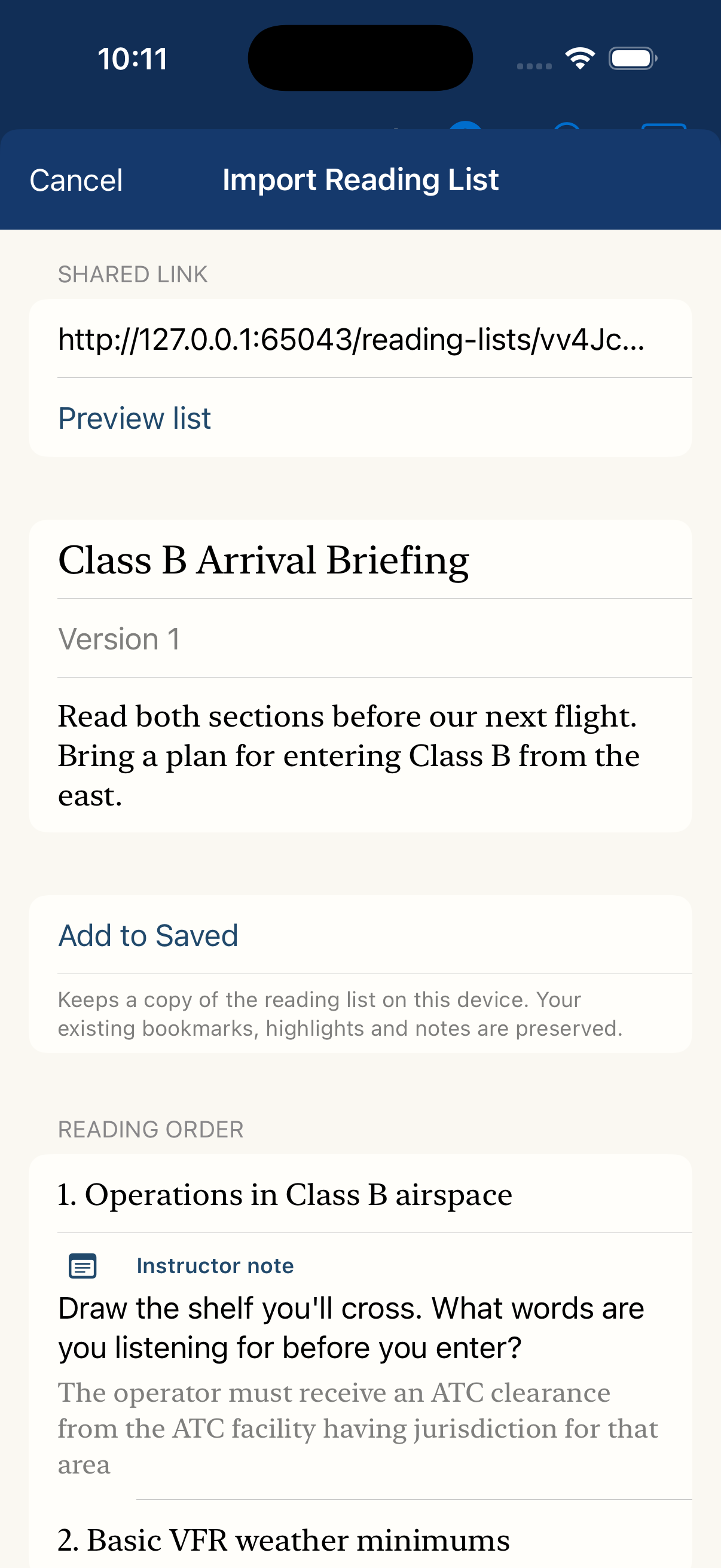
The student opens Import reading list from the Reading Lists toolbar, pastes the link, and chooses Preview list. After reviewing the title, instructions and included readings, Add to Saved imports a copy. Existing bookmarks, highlights and notes are preserved.
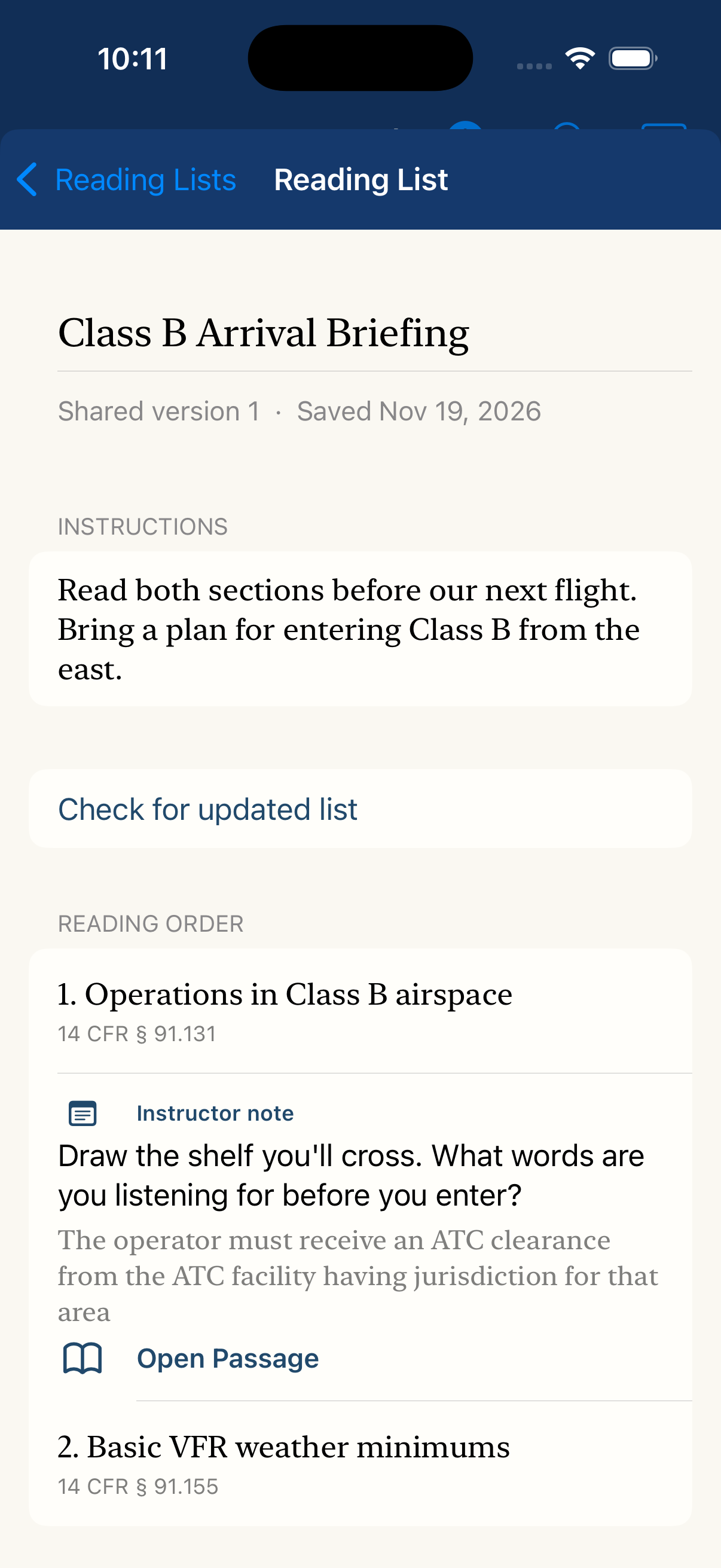
The first capture shows the actual pre-import preview. The second shows the saved student copy of the same version, with the Class B shelf question under Instructor note. Open Passage takes the student back to the source beside that note.
Publish changes deliberately
Your edits stay with you until you choose Publish updated list. To refresh an included note, open Choose notes, choose Use latest edit, save, and publish the update.
On the student’s imported copy, Check for updated list lets them preview and accept a new version. It does not silently replace their saved work. Sharing, importing and checking for updates need a connection.
Before a lesson without service, both people should check Settings → Offline Reading and open the reference pages they plan to use. A saved list points to readings; those readings still need to be downloaded.
This example uses an instructor’s Class B arrival question. Adapt the reading order and instructions to your next lesson.
Your next lesson starts with a question.
Keep a good reference close.
FAR AIM for iPhone and iPad. iOS or iPadOS 18 or later.
One purchase. No subscription.
See your local price on the App Store.